How to Add an Audio File and Use Auto Lip Sync in Adobe Character Animator
About:
Import prerecorded audio and automatically generate mouth shapes (visemes) for your puppet using Adobe Character Animator.
PREREQUISITES
A puppet already imported into Character Animator with mouth shape layers (e.g: Closed, Open, EE, OO) set up in Photoshop or Illustrator.
A prerecorded audio file (.mp3, or .wav). (Raw, clean audio without background music works best.)
Import the audio file.
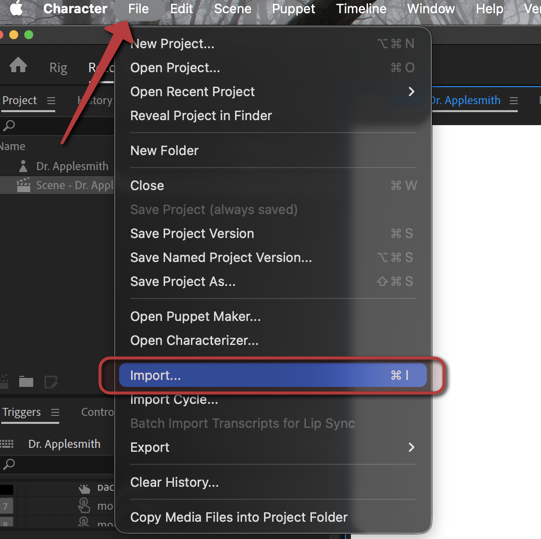
To import an audio file, go to File > Import or press Ctrl+L. Browse to your audio file and select it.
Once imported, drag it from the Project panel into your scene.
Disarm live behaviors
Select your character in the scene timeline. In the Properties panel, unarm any live microphone or lip sync behaviors so the puppet responds to the imported audio instead of your live mic.
Compute the lip sync.
In the Timeline panel, click your puppet track. Hold ‘Shift’ and click the audio track so both are selected. Then go to Timeline > Compute Lip Sync Take from Scene Audio. Character Animator will analyze the audio and generate mouth shapes automatically.
Review and fine-tune
The generated lip sync take, appears in the timeline. You can right-click any individual viseme to swap in a different mouth shape, or drag the edges of each viseme to adjust timing.
Additional: Improve accuracy with a transcript
or more accurate mouth movements, add a transcript to the audio file before computing:
Select the audio file in the Project panel.
In the Properties panel, find the Transcript text area and type or paste the spoken dialogue.
Select both tracks, then go to Timeline > Compute Lip Sync Take from Audio and Transcript.
For longer audio (over 2 minutes), import an SRT file with timing information for best results. You can generate one using Premiere Pro's automatic transcription feature.
Note:
Use raw, clean audio without background music or noise for the most accurate lip sync results.
Mouth shape layers in your Photoshop or Illustrator puppet must be correctly named (e.g., Closed, Open, EE, OO) before importing, or lip sync will not work.
You can apply the same computed lip sync take to multiple puppets that share the same mouth shapes.